Download
Get MarketMage for Claude.
The plugin with every MarketMage skill, in one file. Add it to claude.ai, the desktop app or Claude Code, connect Apify once, then ask in plain words.
Takes about 3 minutes
Install
Pick a way in. Each takes a minute.
Every method installs the same plugin. Then connect Apify once, and you're ready.
Recommended now · the .zip file
Upload the .zip.
On claude.ai or in the Claude desktop app. Download MarketMage (.zip) first, and keep the file as it is: no need to unzip it.
-
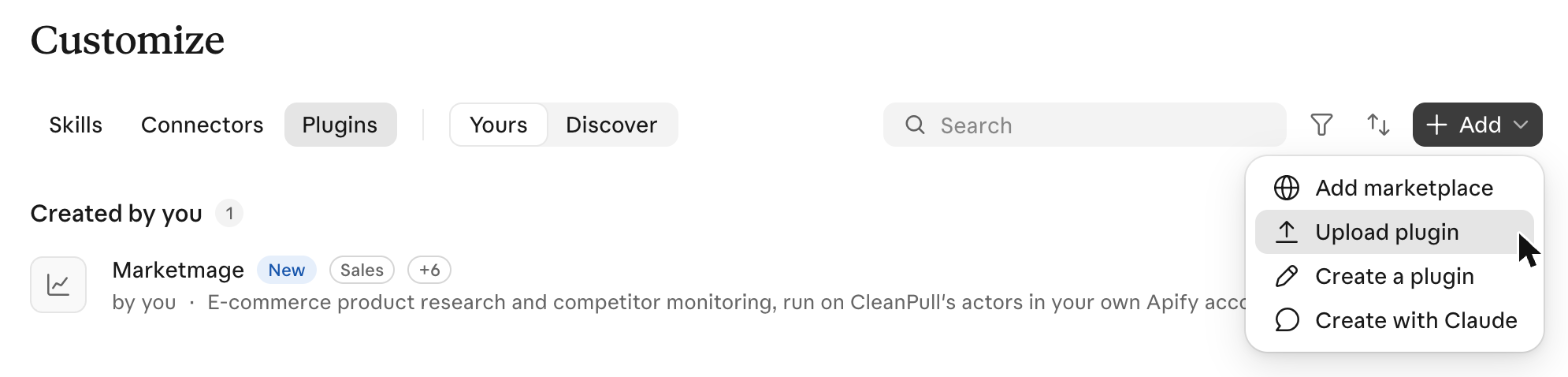
Open Customize in the left sidebar, then the Plugins tab (on the web: claude.ai/customize/plugins). Click Add, then Upload plugin.
-
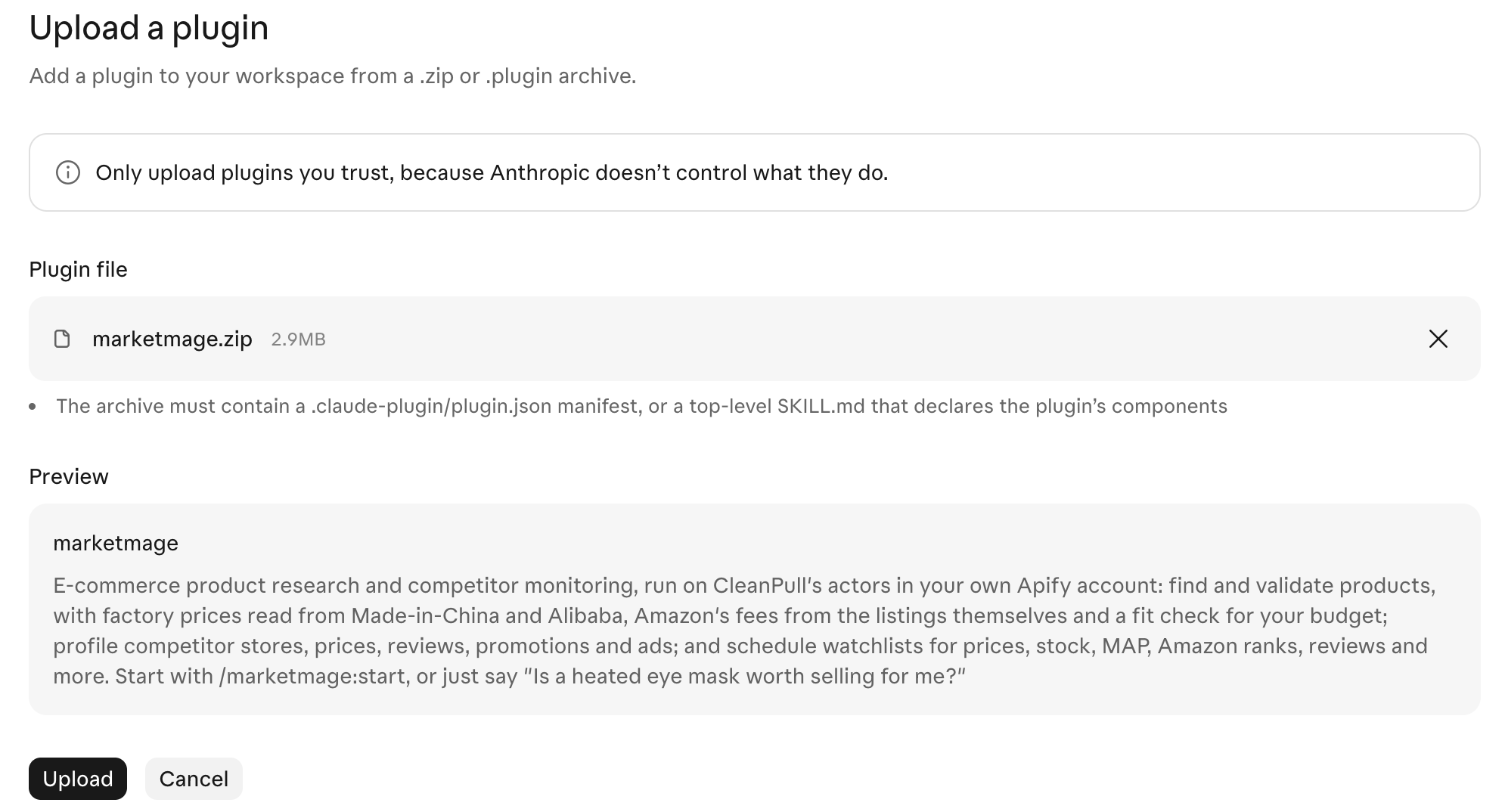
Pick the marketmage.zip file you downloaded, then click Upload.
-
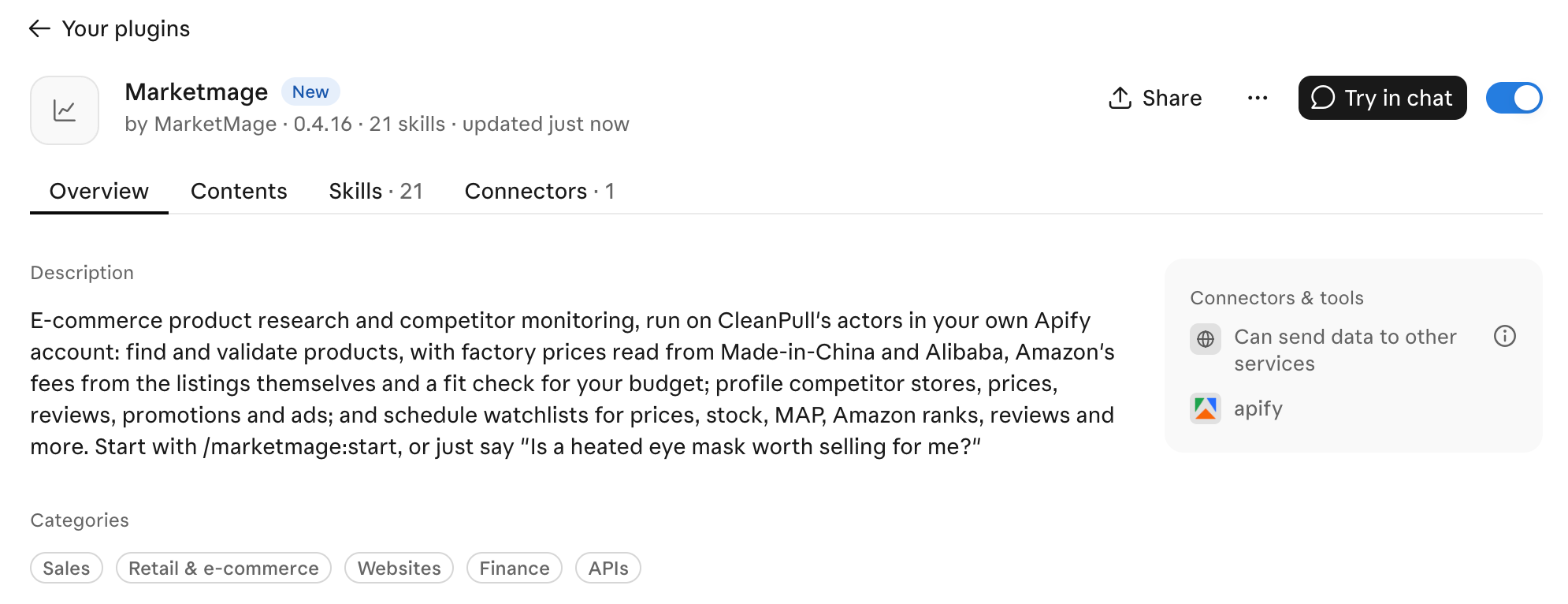
MarketMage is installed: its page shows the version and its 21 skills. By adding it, you agree to the Terms and the Acceptable Use Policy. Next: connect Apify.
To update
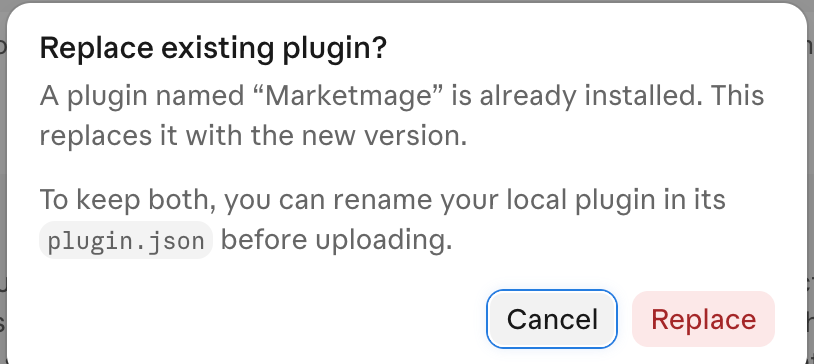
An uploaded copy doesn't update itself. When there's a new version, download the file again and upload it the same way. Claude asks whether to Replace the copy you have: click it, and your Apify connection is kept.
Can sync automatically
Add from GitHub.
On claude.ai or in the Claude desktop app, from the public MarketMage/plugin repository. Claude may offer the Claude GitHub App: you can skip it. Granting it only makes new versions sync automatically.
-
In Customize → Plugins, click Add at the top right. A small menu opens: choose Add marketplace, the first item.
Add marketplace is the first item. Upload plugin, below it, is for the .zip file. -
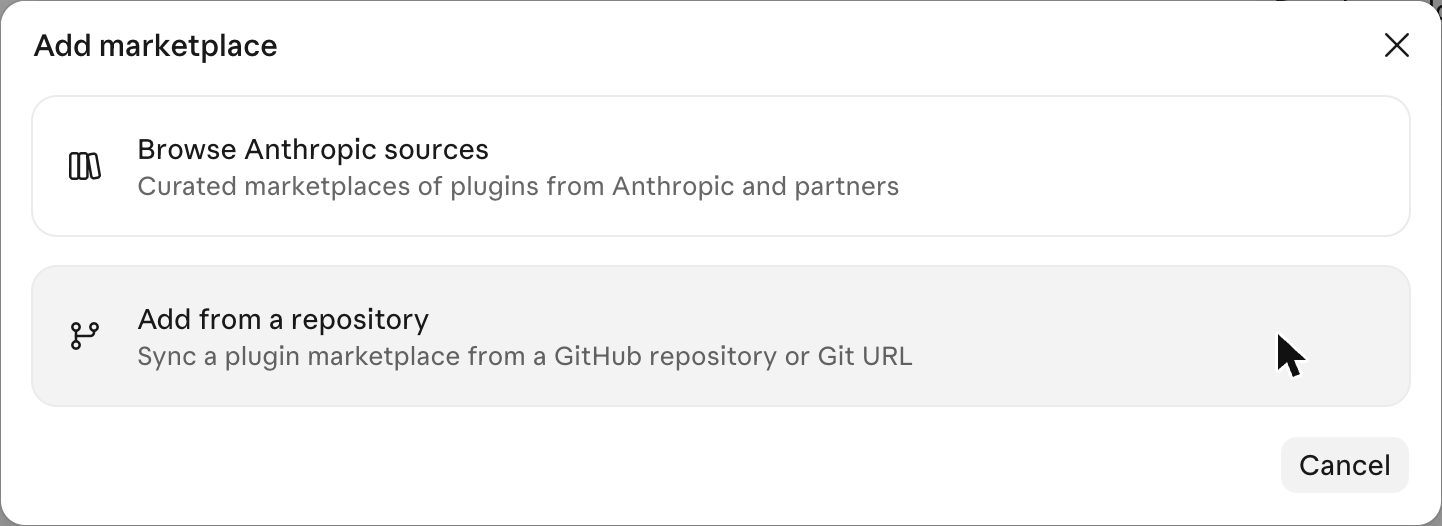
An Add marketplace window opens with two cards. Choose Add from a repository.
-
In the URL box, type
MarketMage/plugin, then choose Use "MarketMage/plugin" in the list that opens.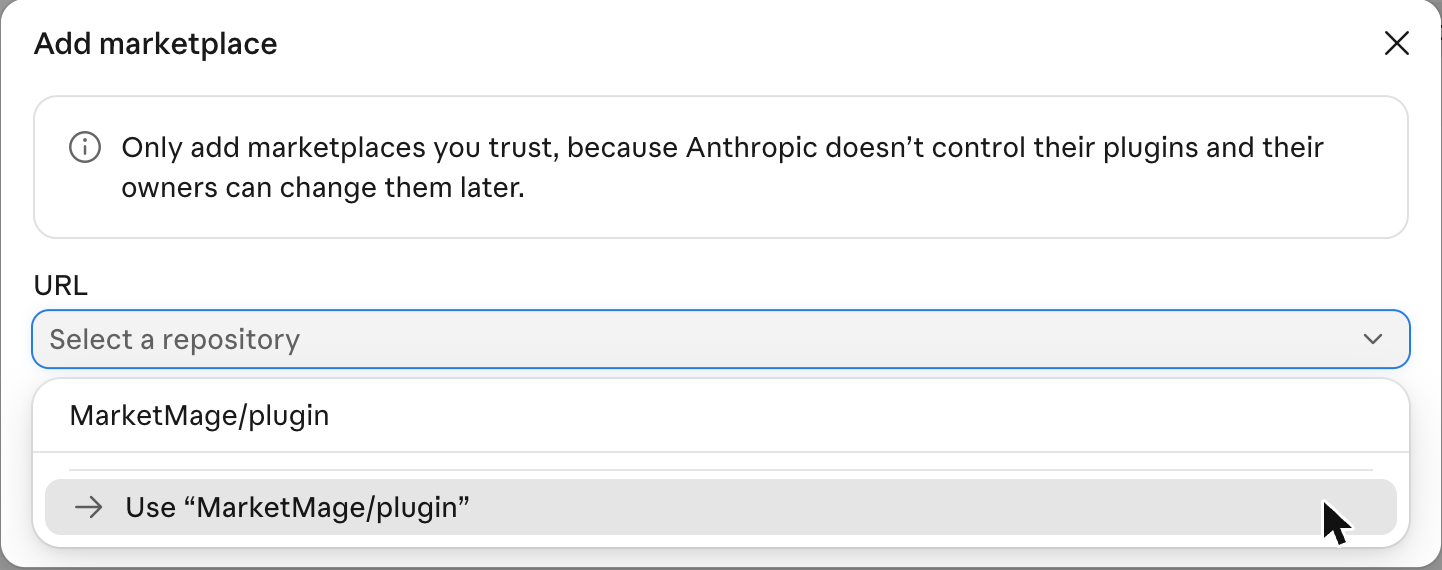
-
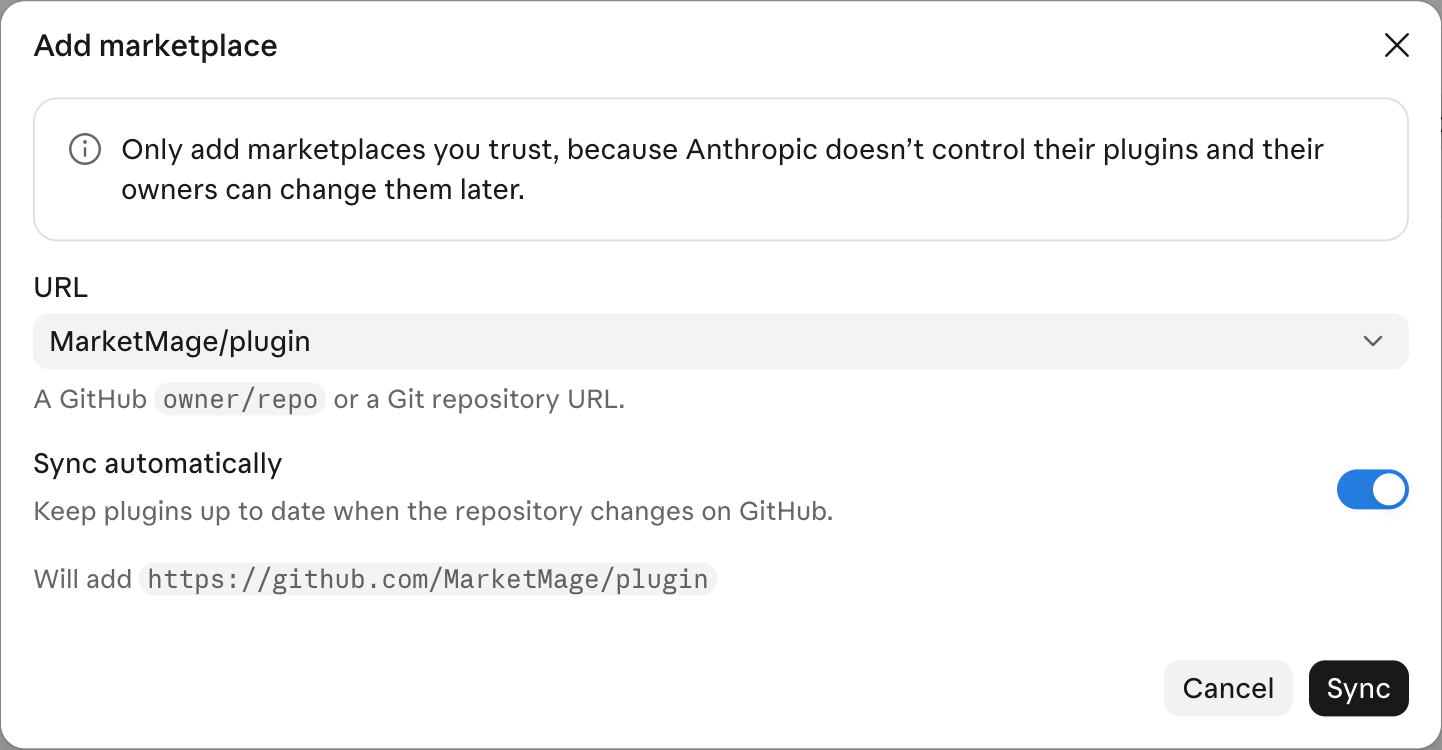
Click Sync.
-
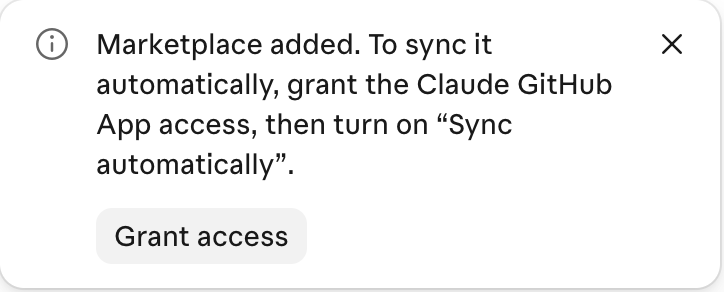
Claude says the marketplace is added and may offer the Claude GitHub App. You can skip it. Granting access and turning on Sync automatically only makes new versions arrive by themselves; without it, use Add → Manage marketplaces → Check for updates (see How do I update?).
-
MarketMage appears on the Plugins page: click Add on its row. Claude says "Marketmage is installed and ready to use". Next: connect Apify.

Terminal
Claude Code.
Type these two commands in Claude Code. A plugin you added on claude.ai also reaches Claude Code by itself, the next time you start it signed in to the same account.
Add the marketplace:
/plugin marketplace add MarketMage/pluginInstall MarketMage:
/plugin install marketmage@marketmage
From a shell, in one step: claude plugin install marketmage --marketplace MarketMage/plugin.
Then, for every method
Connect Apify, once.
MarketMage's research runs in your own Apify account, usually cents a run. The free Apify plan includes $5 of credit a month and needs no credit card.
On claude.ai or the desktop app:
-
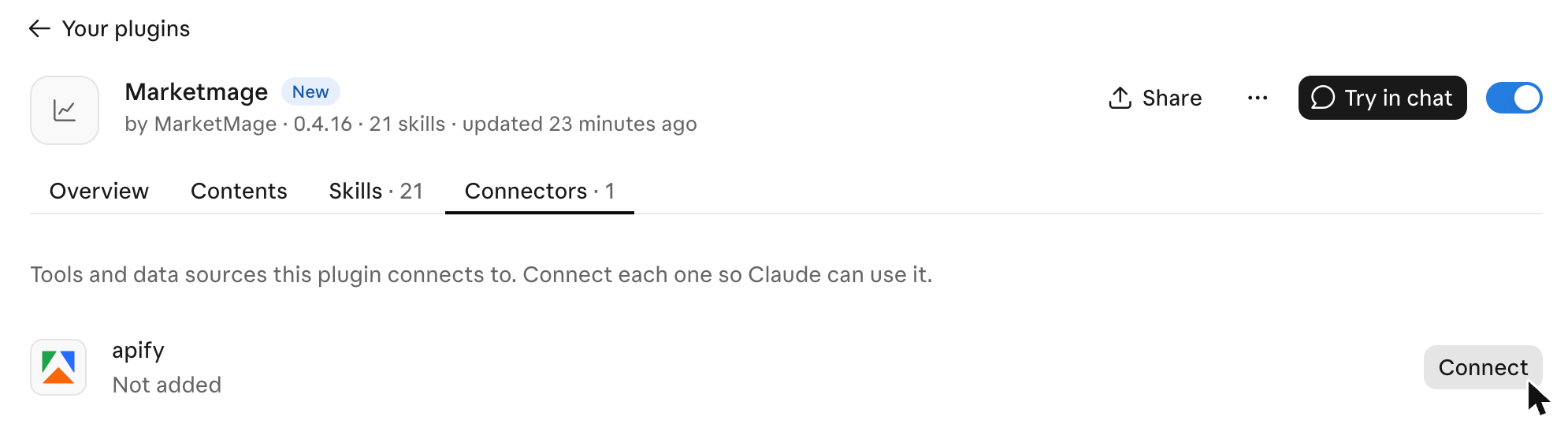
In Customize → Plugins, open MarketMage, go to its Connectors tab and click Connect next to apify.
-
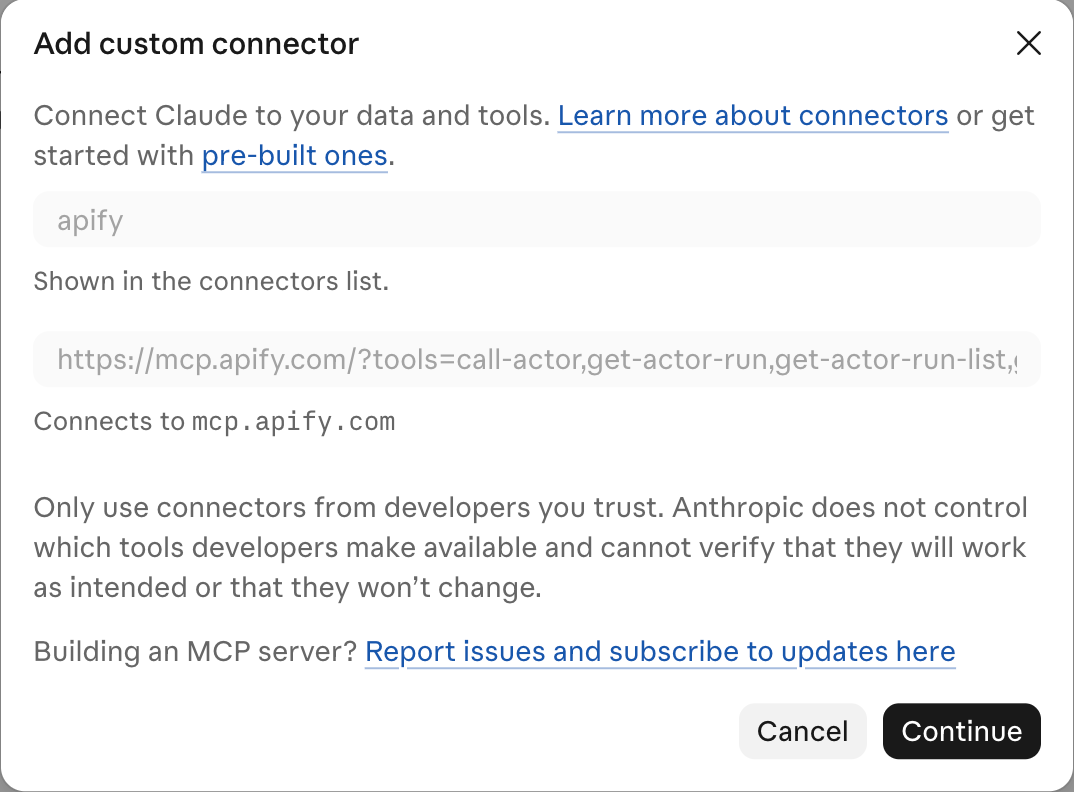
Claude shows an "Add custom connector" notice with the details filled in. Check it says Connects to mcp.apify.com and click Continue.
-
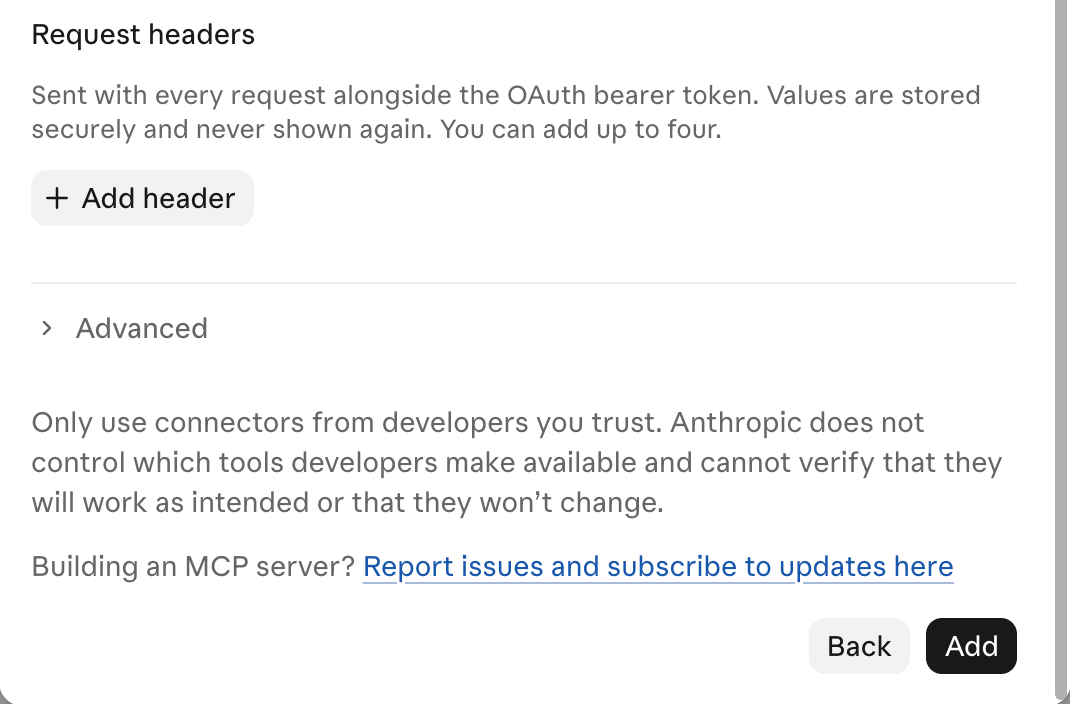
On the settings page that follows, leave everything as it is and click Add at the bottom.
-
Back on the same Connectors tab, click Connect next to apify again, then sign in to Apify or create a free account, and approve. (Already signed in to Apify in that browser? It may connect at once.) It is the only sign-in MarketMage needs.

When it's done, the tab shows apify · Connected. -
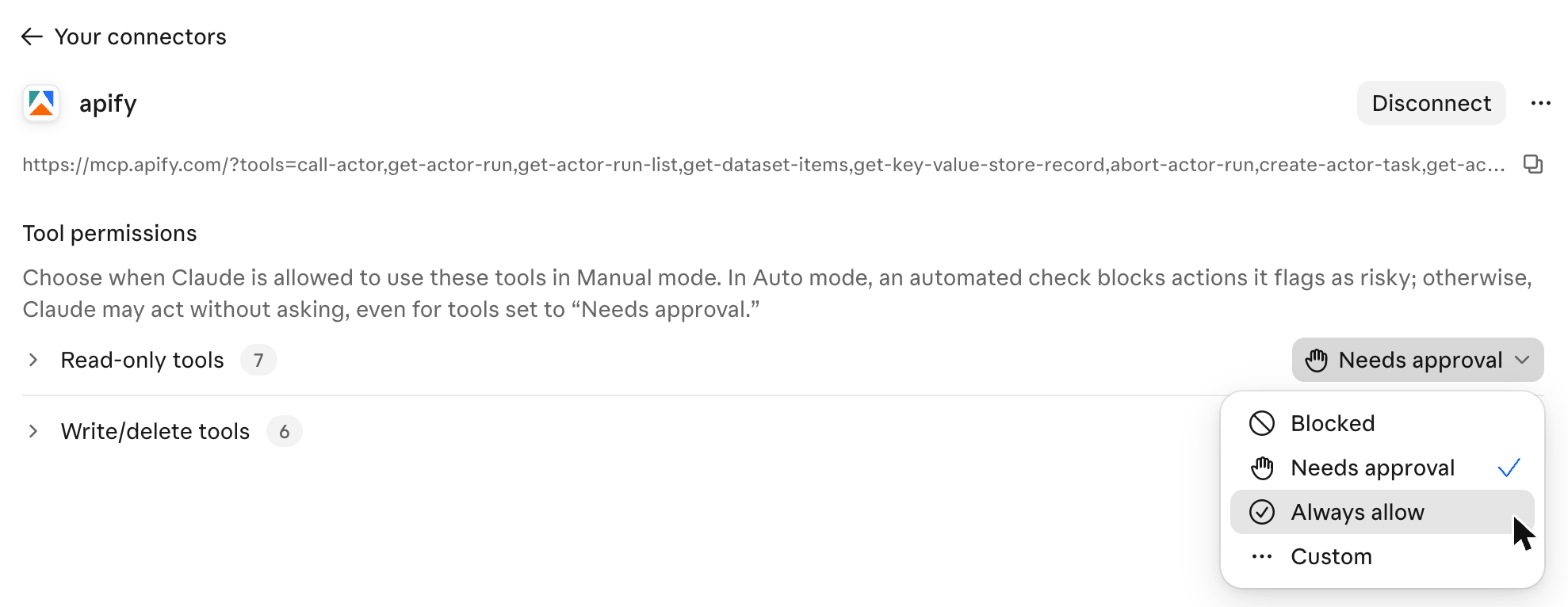
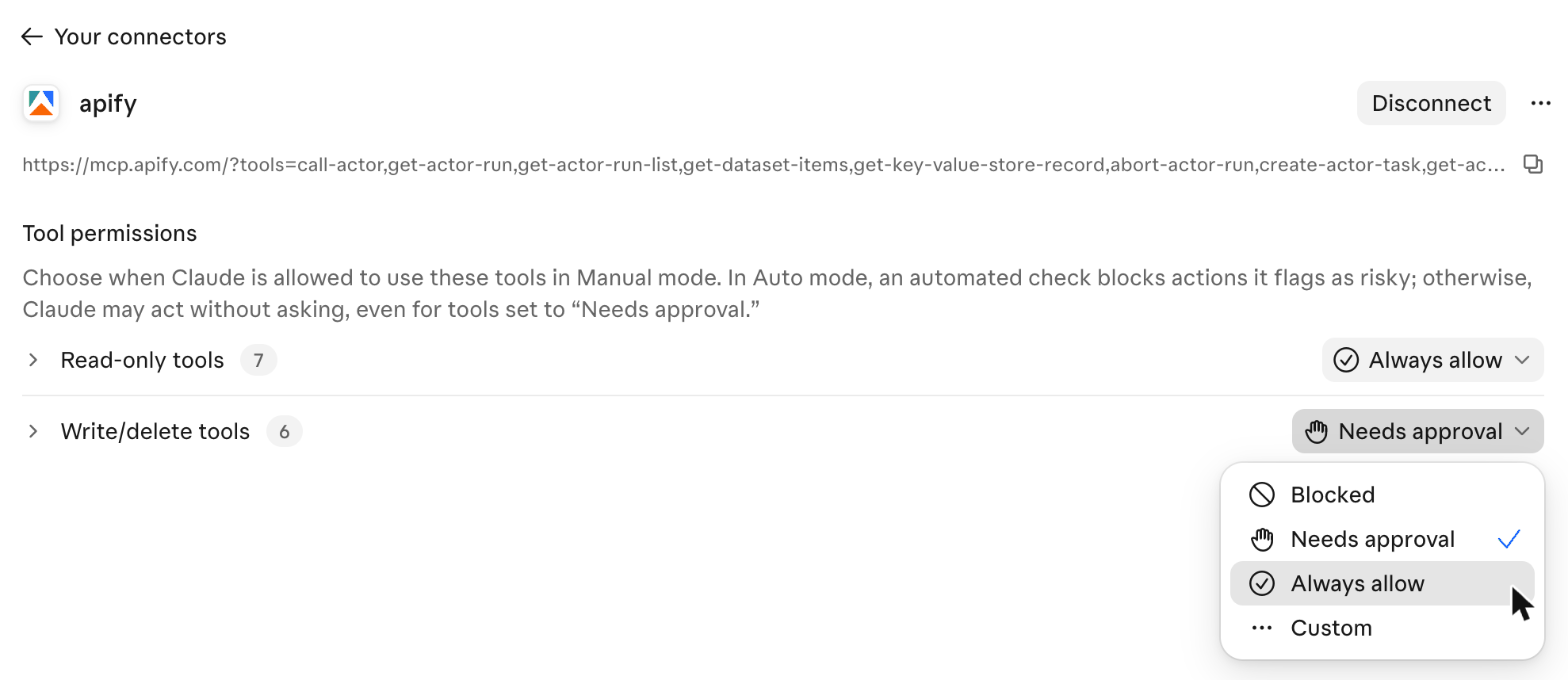
Optional, fewer approval boxes: claude.ai asks before each Apify tool call until you change it. On the same Connectors tab, click apify to open its settings. Under Tool permissions, open the menu next to Read-only tools and choose Always allow.
-
Do the same for Write/delete tools: open its menu and choose Always allow. These are the tools that start a run and save or change a watch. Paid runs still wait for your yes in the chat, every run has a spending limit, and MarketMage only saves watches you ask for. Rather keep a box before watches are saved? Leave Write/delete on Needs approval; expand it and set only Call Actor to Always allow.
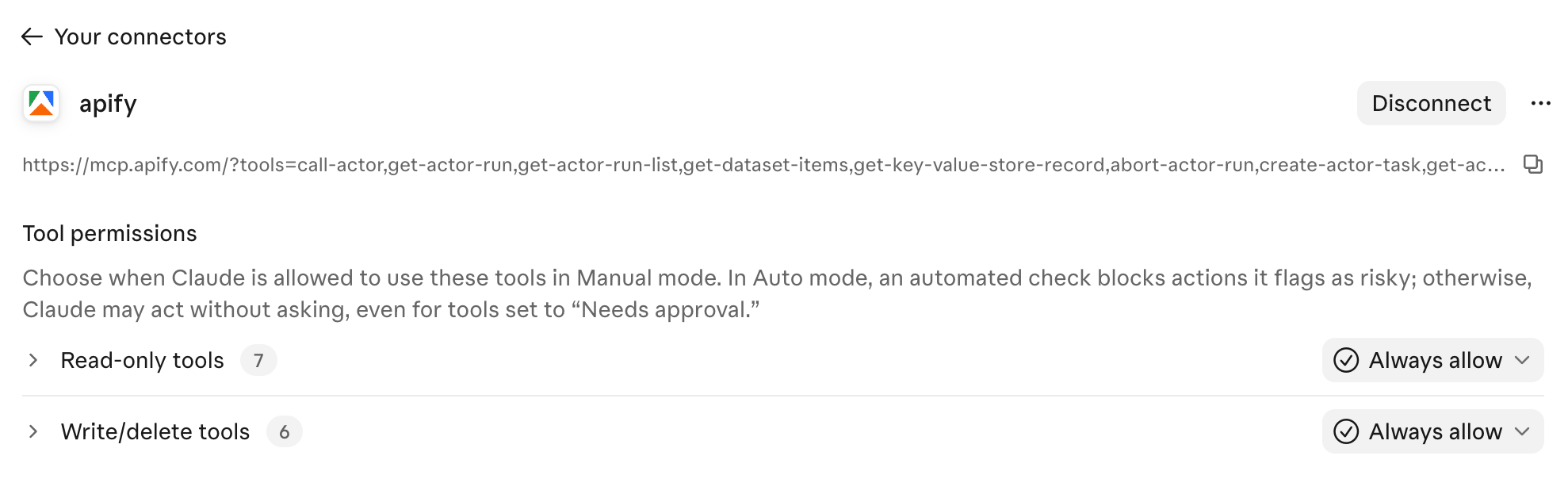
Done: both groups show Always allow.
In Claude Code: type /mcp, choose apify and sign in to Apify.
Connect greyed out, or another snag? See if something goes wrong.
Your first message
Ask in plain words.
Asking Claude to check or look up something reads it live with MarketMage.
For a short welcome, type
/marketmage:startOr ask
Can you check what allbirds.com sells and how they price it?More to ask: the seven jobs, what you can ask and real answers.
Questions
Before you install.
Still stuck? See troubleshooting, or support answers within one business day.
Which method should I pick?
Upload the .zip to be set up in a minute. Add it from GitHub to check for new versions from Claude, or have them sync automatically if you grant the Claude GitHub App. In Claude Code, use the two commands.
Add it once on claude.ai and it's also in the desktop app and Claude Code, on the same account.
Does it cost anything?
It costs nothing to install, and there's no subscription. Each check costs cents in your own Apify account: a verdict on one product idea is about 15 cents. The free Apify plan includes $5 of credit every month, about 30 idea checks, and needs no credit card. Every price is on the pricing page.
How do I update?
Uploaded .zip: download the file again and upload it the same way; Claude asks to Replace the copy you have, and your Apify connection is kept.
Added from GitHub: with the Claude GitHub App granted and Sync automatically on, new versions arrive by themselves. Otherwise, click Add → Manage marketplaces, open the MarketMage marketplace's menu and choose Check for updates.
Claude Code: /plugin marketplace update marketmage fetches the newest version.
Which Claude plans does it work on?
MarketMage works on every Claude plan, Free included; the scheduled Monday briefing uses Claude's scheduled tasks, which come with the paid plans. It works in claude.ai, the desktop app and Claude Code. On Team and Enterprise plans an owner can install plugins for members; each person still connects Apify in their own Claude.
Costs nothing to install. Ask your first question.
Download the file, add it to Claude, and connect Apify once.